
What are Charting Standards?
5 sections Section of 5
To improve the overall standard of CDLC going forward, we are implementing a clear list of what constitutes the 'reasonable standard'. For charts created in 2025 onwards.
This post can be used as a checklist to know what should be expected when creating charts.
Required (Functionality):
This portion is the bare minimum that charts should have to build a solid base.
When you have a solid foundation, it makes doing some of the more advanced parts later you can read about further down a lot easier.
Leading Silence
Charts must have 10 seconds of Leading Silence at the start of each project. This is to ensure that the game is given enough processing time and load up properly, as well as give the player enough preparation time.
This is also to match ODLC standards. Every DLC has 10 seconds of leading silence before the audio starts.
One of the easiest ways to add Leading Silence is going to Song in EOF > Leading Silence > Add 10,000ms before you do anything else with the project.
It's also advised to check the Adjust Notes/ Beats box, as well as Re-encode.
The start of your charts should look something like this:

Decent Audio File
The audio file used for charts should ideally be sourced from reputable sources. These should be the highest quality, final versions of the songs available. Official band websites or Bandcamp can be a good place to start.
If you do happen to use other methods to acquire the audio files, please load up the file into something like Audacity and make sure the audio is of adequate length.
Certain files for example may include extra intro and outro audio that do not belong in the file, loading it up in a DAW allows you to cut any excess that does not belong there.
Ideally there should be a second of silence before the audio starts and the outro for the song should also have a second or 2 after the audio finishes.
We do this to make sure the audio doesn't just abruptly start or end.
Proper Tuning
Tuning is very important when it comes to playing song in Rocksmith and it's essential that songs are properly accounted for. There's nothing worse than loading something up into the game, only to find out that the song is slightly sharp or flat than A440.
Tools such as Tonart can be extremely helpful in this process and it is very easy to use.
(Tonart isn't perfect, but it can give you a good starting point to work from.)
When you have imported the audio file into Tonart, it will do its best to try and figure out the Hertz the song is tuned to.
At the very minimum, you should change the Tuning Pitch box within the DLC Builder to match whatever Tonart detects.
Another thing you could do, and what a lot of people like, is when you pitch shift the audio file to A440 to save players from having to retune. Ubisoft also started to do this and in RS+, they do not add in any songs they cannot pitch adjust to A440.
This is also relatively easy to do in something like Audacity.
You would load in the audio file > double click the audio track > Effects > Change Pitch > then under Frequency, you would input whatever Tonart detected in the From box, and set the To box to be A440 (standard concert pitch)
In that box there is also an option at the bottom to ''Use high quality stretching''. It's advised that you DO NOT check that box as it has caused audio glitches to a number of creators that have attempted to use that feature in the past.
Accurate Transcription
The transcription of the chart should be as accurate as possible. Obviously unless you are the artist that created the song itself, there is always going to be some differences with what is transcribed and what was originally played. It's of your best interest to use as many resources as you can to make sure the tab is pretty close to what is being played.
There are sites such as SheetHappens which work with bands to create tab books for certain albums, this is one good source to find accurate tabs.
Some artists also provide tablature themselves on their own website. Jacky Vincent (formerly of Falling In Reverse) for example has tabs for his solos on his website for a small fee.
There are other sites, such as PaidTabs, where you can commission someone to make a tab for a song you're after.
There are also places like Ultimate Guitar and Songsterr which also host a plethora of free tabs - however, free usually means not very good so it's advised that anything used is always triple checked as best you can with live footage if possible.
As with any paid service, it is buyer beware and that the things you are buying may not be 100% accurate and might require some adjusting.
Adequate Sync
The sync for the song is one the most important aspects when it comes to chart creation and you should do your best job at trying to get the chart as synced as possible.
In EOF, one of the first things you need to do is set your Beatmap.
There are sites such as Tunebat which will give you a rough estimate at the overall BPM of the song that you can change first in EOF under Beat > BPM Change.
It's worth noting that songs do not always fit one set BPM. Older songs, pre-1990 in particular, will vary around the BPM you initially set because they didn't record to a click track or quantize the song. Where as things such as modern metal songs you will find are more likely to be quantized and the amount of syncing you have to do is less.
It's still recommended that you import the audio file first, and then go through and sync the measures before importing any tab.
You can press F5 in EOF which will display a waveform graph which can be very helpful when it comes to syncing as it will give you a visual aid that can be used to help you line up the measures with the audio.
You can press M in EOF to enable a metronome, which will play a metronome sound whenever the playback bar (the green bar) passes over a beat line.
You can also press C in EOF to enable a clap, which will play a clap sound whenever the playback bar passes over a note head in EOF.
It's also recommend that you set your Zoom in EOF to be something like 1/4 so you are zoomed into the waveform a little more which can help you sync better.
Using a combination of the waveform graph, adjusting the zoom, the metronome and the clap can help you make sure your chart is in sync.
Here's an example of a chart which is properly synced up with the waveform graph:

Tones
All charts need to be created with base tones included and tone changes throughout the chart when appropriate; regardless of if you personally use the in-game tones or not.
When it comes to adding tones, you need to always add them slightly before the note in EOF.
If you add them ON the same place where a note is, it will usually cause a pretty jarring audio transition which can be amplified if the tone change is pretty different.
In EOF, you can press Shift + Page Up/ Page Down to snap to the next/ previous note. You can then press Ctrl + Shift + Page Up to snap to the previous grid snap, which is where your tone change should occur.
To add a tone change in EOF, press Ctrl + Shift + T.
Remember to make sure your tone names are spelled exactly the same if you need to recall to a previously used tone. If you're switching between a Clean and a Distortion tone for example, the Distortion would need to be spelled the same in both places.
You may need to change your grid snap (Edit > Grid Snap) to be double whatever you're currently set to if you don't have a clear empty grid snap bar between the note.
You can press F11 and where it says ''Top of 2D pane shows:'', you can set that to be Tones to display the tone changes in EOF.
(You can also press Shift + F11 to quickly toggle between those options)
Here's how a tone change should look inside EOF:

As for adding tones to the psarc file, the DLC Builder has a section to add tones.
There are a few different options when it comes to adding tones. If you aren't confident creating tones yourself, the simplest option you can do is going to the Collection tab and using tones from one of the Official DLC. There are thousands of tones built into the DLC Builder which you can use.
When you have added the tones you want to the tones list in the DLC Builder, you then have to assign them to a corresponding tone.
When you click on a tone from the Tones column, on the right it will give you some more options regarding that tone:
- The Key is the tone name you set in EOF.
- The Name is the name in the DLC Builder (this won't be seen in-game)
- The Description is what will show up in-game. It's best to match these as best you can. There is also the option to click the + or - icons which adds another option to further define the tone. For this Lead tone for example, I could click the + icon to have two description boxes and set one as Lead, and the other as Distortion which will show up in-game as Artist - Song Lead Distortion.
- The volume is the volume of the tone. This does require some trial and error to figure out what is most suitable for the song, which is where playtesting your charts comes into play.
Manual Phrases and Sections
Manually placing Phrases and Sections throughout your chart help break the chart up into more manageable chunks which is very beneficial when it comes to trying to learn a song. Having the Sections/Phrases set roughly every ~4 measures is usually a general good starting point. (This rule may change depending on the time signature of the song)
You can press Shift + P to add a phrase.
You can press Shift + S to add a section.
For simplicity, it's usually easiest if every Section you place is also a Phrase. This is easily doable in the Section menu via the checkboxes underneath the list.
It's also advised that you check the box to make the Section and Phrase specifically to that arrangement and set them manually for the tracks you're doing; solely for the reason, sometimes one instrument will drop out and stop playing whilst another continues to play. Having Phrases and Sections be track specific allows you to note places where the instrument does stop playing as NoGuitar sections.
Here's an example of a song in 4/4 with new sections/phrases manually set 4 measures apart:

You should have two empty measures at the start of your chart before the audio starts that is called your COUNT phrase. - This gives the game a clear starting point where the chart should start.
We set this before the audio starts so if you do happen to have a long intro, the song won't start randomly midway through that intro.
After the COUNT Phrase, your next logical Section name would be an Intro whenever the notes actually start.
It's then up to you how you want to Section the song up:
- It's recommended that you do at least one section per segment of the song (Intro, Verse, Pre Chorus, Chorus, Solo etc.) Using the lyrics is usually a good guide as to when to mark said Section.
- A lot of people do prefer if you split up the Sections a little more and most people will do at least 2 Sections per song segment. In Western pop/ rock music, that usually equates to a new Section every 4 measures. (This isn't a strict rule to have a new Section every 4 measures, there will obviously be some cases where you will have to use your best judgement as to what feels right.)
- When it comes to Solos, it's also liked by a lot of people if you break it up even more and have a new section every 2 measures so they can learn harder parts in smaller chunks.
Just note that Rocksmith only allows 100 Phrases before the skyline breaks and you potentially run into issues.
Unless you're doing a Full Album chart, or a prog song that's 30 minutes long, you'll usually have roughly 25-40 phrases for a well segmented Lead arrangement.
Dynamic Difficulty
Dynamic Difficulty in 2025 is an automatic process within the DLC Builder. This is another reason why we push people to use the newest tools.
Having you manually set your Phrases and Sections also helps the DD generation. Having the Phrases and Sections be set in a way which is logical to the structure of the song means that when people try and learn the song, they can learn the songs at the start of said sections.
When you haven't set any manual Phrases or Sections, the blocks you can select in the Riff Repeater are very sporadic and do not make any sense; they usually start at a random point in the song.
If you go to File > Configuration > DD, you can adjust some of the DD generation settings.
The Threshold can be left at 80%.
It's advised that you switch to using the ML Model for the Phrase Level Count Generation. Doing this helps reduce the likeliness of the game crashing when trying to play Score Attack on Easy or Medium.
DLC Builder
The DLC Builder is the go-to tool to be using in 2025 for psarc creation.
There are lots of Quality of Life improvements with the new tool which helps make the psarc creation process a lot easier compared to the old Toolkit.
Auto-calculating the song volume to match ODLC standards is a big push as to why to use the DLC Builder.
This makes it so charts are made at the same volume as all the DLC songs were.
The DLC Builder also includes an ODLC Tone collection of every tone ever used across the 1500+ DLC files created by Ubisoft.
This can help make sure that your chart has at least some kind of tone, regardless of if you use the in-game tones or not.
The DLC Builder also provides a validity check where it will scan each arrangement added and either assign the arrangement a green checkmark - to indicate that there are no obvious errors for that path.
Or it will flag the path with a red cross - which indicates that the path in question does have some issues that need addressing.
If you click on the arrangement with a red cross, in the right hand portion of the DLC Builder, there should be a red cross which says Issues. You can click on that which will give you a list of problem areas with time stamps that you should look at.
It's a good sanity check to make sure you the charts you upload have no issues detected by the DLC Builder.
Here's an example of a issue log from the DLC Builder for a chart which has a lot of issues that need fixing:

Required (Playability):
This section is all about the form of the chart and how it looks visually.
When a chart is constructed where it is visually easy to follow and makes sense from a playing standpoint, it can vastly improve the overall quality and playability of the chart.
Fret Hand Positions
Fret Hand Positions (FHPs) are one of the most overlooked aspects when creating charts and can alter how the chart looks visually and plays.
FHPs are based around where your fingers should be positioned on the fretboard. By default, they are set to be 4 frets wide in game - because you fret with your index, middle, ring and pinky fingers. (1 finger per fret).
There are some situations however where you should exceed this rule and it done best when we manually place FHPs.
You can manually place/ edit Fret Hand Positions by pressing Shift + F. That box which pops up is for where your index finger should be.
Tapping riffs for example are one place where having auto-generated FHPs can hinder the playing experience as it will be generated where the FHPs are bouncing up and down the fretboard, when it can be a lot simpler and just be one wide FHP.
Here are some example of how a tapping solo and a sweep solo should look inside EOF:


Chord Fingerings
Chord Fingerings (what fingers you should play chords with) are one of the other overlooked aspects of charts and can really hinder the player if they are incorrectly set.
The most common error can be found when playing drop tuned songs, barre chords when fingerings went auto-generated are usually set to play them with fingers 1 (index), 2 (middle), and 3 (ring) which they shouldn't be. They're barre chords, which are mostly played with just one finger.
Here's an example of a Drop Tuned song which has incorrect fingerings set for barred power chords. (This chord in the song should be played all with the same finger):

This is where playing with the guitar or bass close to hand and setting chord fingerings manually comes in very handy as you can personally attempt to play the chords before defining them and see what works best.
If you are unsure, there are also over 1500 ODLC made for the game, which should cover a wide range of chord fingerings you can search for on youtube for a reference.
Sustains
Sustains in Rocksmith should never touch the following note and there should always be a little 1/32 gap between the end of the sustain tail and the following note.
We do this to help make it easier for the player to see when one note ends and the next one begins. Sometimes it can be hard to make out, which is where the little gap comes in handy.
Another general rule of thumb is that sustains which last less than a beat, and don't have things such as bend notation, you can usually just leave out and a regular single note head with no sustain will be more than enough. Short sustain tails don't really convey any extra information.
Chords are one exemption to this rule. It's usually best that all chords have a little sustain tail to help improve the in-game visuals and that their chord box is outlined a little more.
Likewise for if you add Handshapes, the sustains on those should exceed past the final note slightly so the handshape box doesn't end ON that final note, it goes past it slightly.
Slides
There are two different kinds of slides we can assign when creating charts.
Pitched Slides.
- Pitched slides are used when you are sliding from one note INTO another note and holding that target note. You can add pitched slide note status by clicking on a note > press Ctrl + up/down arrow
For these, kinds of slides you want to have link-next status applied to the note with the slide to connect to the note you're sliding to. (Shift + N to add link-next status)
It's also nice to add a tiny sustain onto the note you're sliding to so in-game the slide doesn't just abruptly end. This also helps with note detection as well.
Adding ignore status (Shift + i) onto that target note helps stop any random misses players may encounter on pitched slides too. This isn't a mandatory step if you have added a little sustain to the target note.
Here's an example of how Pitched Slides should look in EOF:

Unpitched Slides.
- Unpitched slides are for when you want to show direction and for the fret you're sliding to. (Ctrl + u)
For both kinds of slides it will ask you to define a fret to go to, you want to make sure the values you set here are of a proper length and reach the target note/ fret and not just ±1 fret.
Here's how Unpitched Slides should look inside EOF:

Chord slides are something else which need some extra information manually setting.
If you're sliding from one chord into another chord, you need to mark both the starting chord and the target chord you're going to in their own Handshape. We do this so in the game, each chord will have their own chord box defined on the note highway and makes the slide consistent. If you don't mark a handshape, the DLC Builder will likely give you an error message, and in-game the chord you slide to won't have a chord box.
Here's an example of how Chord Slides should look like:

Handshapes
Handshapes have a few very handy use cases. The main way use handshapes, and is also what Ubisoft also swapped to using, is marking out arpeggiated sections.
Arpeggios do have their own notation, but both Ubisoft and the community both shared the same opinion that the Handshape notation is just more aesthetically pleasing and provides almost the exact same information.
If you have a section within the chart where the notes are played as an arpeggio, we can select that group of notes and then press ctrl + shift + H to assign all them notes selected into it's own handshape.
What this will do in-game it give the player the prompt that the notes coming up are within a certain chord shape and they should hold said chord shape.
Here's how a Handshape should look inside EOF if you have an arpeggiated chord.

Handshapes can also be handy in some heavier songs which have break down sections. We can use handshapes to group certain batches of chords together which should be played together.
By assigning groups of chords into little chunks, this helps the player know that there's a gap in between said chunk.
Without handshapes, if the chords are the same shape, in-game it can sometimes be displayed that you are supposed to hold the shape and let it sustain when that isn't the case.
By adding handshapes to chunks of chords, it helps prevent that. We can also add Crazy Note status (click the first chord of each new chunk and press T, that chord should turn black) to also help the game know that that batch of chords is it's own grouping and that the chord prompt should display again.
Here's an example of how handshapes in heavier songs can used to split up things into groups

Nice to haves:
Lyrics
Lyrics are a nice addition to your charts to help increase the overall quality.
The ODLC standard for lyrics are short lyric lines that are syllable broken, which focus on the main vocal lines.
Each new lyric line is capitalized, and there is no punctuation at the end of a lyric line either.
Lyrics should not be used to include your charter name, nor should it be used to include other things which are not the actual lyrics of the song.
To create lyrics, you can use tools such as UltraStar Creator which is a program where you can paste in the lyrics for the song and the audio file and you can then tap when the the lyrics are heard in the song. It's best if you set the playback in USC to be 70% so you can be a little bit more accurate when trying to sync the lyrics with the song. You can then export a .txt file you can import into EOF, where you would then do some fine tuning to make sure the lyrics are synced properly.
Alternatively, you can also just do the lyrics directly into EOF by going to Song > Track > Part Vocal and then manually placing each syllable as you go.
Arrangements
Obviously having one chart per song up on Customsforge would be ideal and avoid any confusion for anyone looking to play the song. So if you are able to create a chart with all 3 arrangements, that does help.
That being said, charting for what you are most comfortable with should always take precedent. If you do not own or play bass for example, omitting bass from your file is completely acceptable.
Likewise if the tab you're using does not include bass, leaving the chart without bass is preferred than to clone the rhythm and trying to use that as a bass; it usually never works well as the bass is different to rhythm.
It also may be impossible sometimes to have all 3 Lead, Rhythm and Bass paths for a chart as some songs may not have guitar/ bass parts; bands such as The Omnific for example are a duo bass band, there is no guitar.
Lead paths in Rocksmith are usually the main guitar path which includes solos and higher melody parts.
Rhythm paths in Rocksmith are usually an easier guitar path that's mostly comprised of chords and sometimes some easier riffs and lower harmonies.
Bass paths are the bass in the song.
Alternate arrangements are usually for any extra guitar parts, or to isolate specific solo parts if both guitar players in the band play a certain part of a solo.
Coheed and Cambria is one band example where Alt Lead paths can come in handy:
- Lead is a mixture of both Claudio and Travis' solos.
- Alt Lead 1 is the Lead path, but only includes Travis' solo.
- Alt Lead 2 is a the Lead path, but only includes Claudio's solo.
- Rhythm is purely just the Rhythm and contains no solo parts.
Bonus Rhythm has been the community accepted way to have 5/6 string bass arrangements.
Bonus Bass paths have been used in ODLC to be vocal melody arrangements, like in Rush - The Spirit of Radio.
Chord Names
Chord names can also be something which the charter takes into consideration as well to help the player learn the song.
Drop tuned songs for example can sometimes be something to look out for if you don't properly read the prompts which show up if you manually change the tuning.
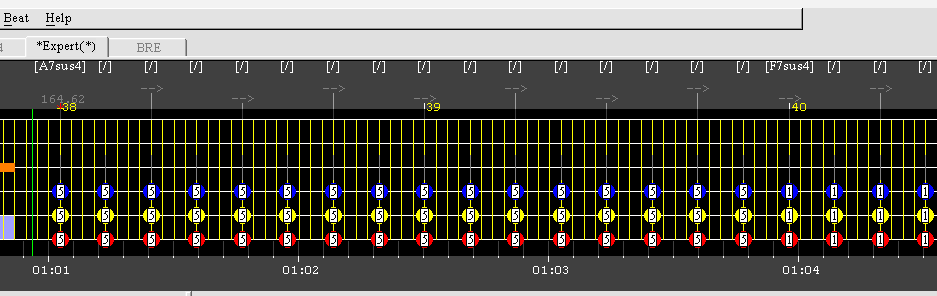
A lot of older Drop Tuned songs will have ''7 Sus4'' chord names which 99% of the time are incorrect because the creator ignored the prompt about the chord names.
Here are 2 examples of looking at the chord name view in EOF of the same file. The first is the incorrect chord names for a song in Drop A. The second is displaying the correct chord names. It may seem like a minor thing, but for those trying to learn the song, it can actually be very helpful to give them the correct information.

You can use sites such as Oolimo to figure out the name of certain chords.
There are also little tricks you can do within EOF to hide chord names from appearing, which can be very helpful clearing up some of the visual bloat on-screen.
You can click on the chord and press N to open the edit pro guitar notes box and at the top of that box, there is a field where you can change the chord name.
To make the chord name disappear, you just have to rename the chord to be '' '' (just a single hit of the spacebar)
You can also press F11 and change the Top of 2D pane shows section to be Names (chord names), which will display any chord names set above the piano roll in EOF.
References
Having some sources to reference as you create the chart is very helpful.
Live videos of the band playing the song, or playthrough videos by the player themselves is one good example of a reliable reference you can use.
Likewise, sometimes some artists do lesson/ tutorial kind of videos which shows how certain parts of the song are played. Tommy Johansson for example has some How-To videos on his youtube channel for how he played certain solos in the Sabatan - The War To End All Wars album.
More Defined Tones
Despite Rocksmith being a little limiting regarding what tones, you can still get pretty close to matching the tones to what's in the recording.
There are sites such as Equipboard which you can use to try and identify what gear the artist used.
There is also this Google Sheet of the in-game amps and pedals and the real-world alternatives: https://docs.google.com/spreadsheets/d/1lRoIwHeoNjIUWMY7Tuwto8gQDuwIqi_4OJiL7cuoydo/edit?gid=0#gid=0
When creating tones, it's also best to also play them with the song playing. The sound of a tone can change drastically when you play it on its own and along with the song.
Further Fine Tuning
ODLC visuals https://customsforge.com/index.php?/topic/30557-guidelines-for-official-looking-customs/
Tech notes https://customsforge.com/index.php?/topic/890-tech-notes-tutorial-authoring-complex-bends-and-more/
Uploading to Customsforge:
When uploading the file to Customsforge, there are a few things that should be taken into account.
The song information should be filled out as best you can.
Song Information
The artist and song title field should be accurate as to what is found on other music streaming services.
For example, it should be Metallica - The Four Horsemen, Kill 'Em All. Not, metallica - the four horsemen, kill em all.
Two additional parts you CAN include as part of the song name field are, (Live) and (Full Album). These are two additions which can be very helpful to include for the player to differentiate studio versions or singles from a live recording or a full album chart.
It's also nice to make sure you fill out as many of the fields on the upload page as possible.
Since it's pushed that you use the DLC Builder, you can import an rs2dlc file which should be created when you compile the psarc file. This should automatically fill in the artist field, the song field, the album field, the year field, the duration field, the version number as well as the tunings.
You then just have to add an album art link and a link to the song.
You can usually just go to the album wikipedia page > right click the album art > Copy Image Address and paste that into the album image field.
You can also usually just copy the youtube link for the song from the band's youtube channel and paste that into the music video field and click the Format button.
It's also nice if you assign a main Genre for the song so users can use the filters and find songs within the same genre.
In this Metallica example, the main genre would be Metal, the sub-genre would be Thrash Metal.
There is also a list of Tags for tags you can add about said chart. This is where you can add tags such as Pitch Shift if the chart uses pitch shift tones, or if a chart is Non-English, if it is a Multitrack file and the download folder has some No-Guitar/ No-Bass tracks available to download (where the bass/ guitar is removed from the audio)
There is also a section for any instrument requirements. This is where you can select things such as Extended Range instruments like 7 String guitar or 5/6 String bass. If you need to use a capo, if you should have a whammy bar etc.
Author Notes
The Author Notes box is to provide the person downloading any extra information about the chart that is useful. Things such as:
- What resources you used to make the chart, or if it was created by ear.
- Clarifying what "Custom Tunings" are being used; letting people know prior to them loading it into the game is always nice.
- Reasons why you may have uploaded a new chart of something which already exists.
- Letting people know what the specific True Tuning is if it isn't set to standard concert A440 pitch.
- Letting people know what fret a capo is used on.
This SHOULD NOT be used to just copy paste the wikipedia article about the band. If you do, it should at least not be the primary information in the author notes.