
Configure EOF
Configuring EOF
Finding the Right Buffer Size
It is important to set the Buffer Size to a good setting for your computer. Differences in hardware configurations mean that not all computers will operate properly with the default buffer size (4096). To test, load the example song and press play. If the audio stutters or crackles, the buffer size is too small. Increase it in the Settings dialog:
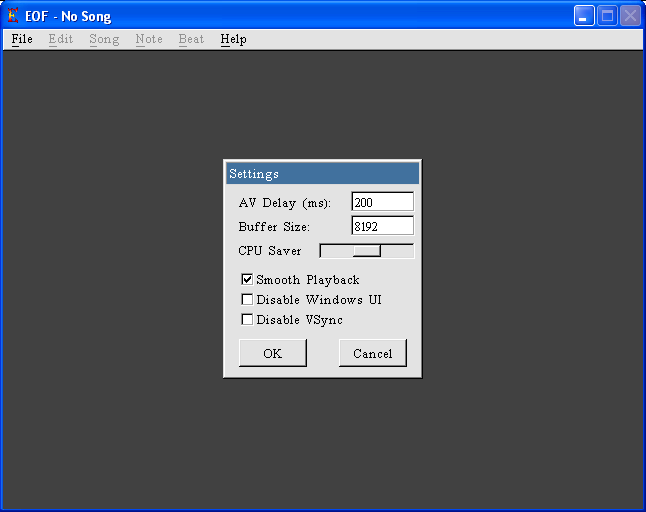
Try 8192, then 16384, if needed. If stuttering persists, your computer may not be powerful enough to run EOF. Note that the buffer size affects the AV delay, so you may need to update that setting (see Setting Up Your AV Delay).
Setting Up Your AV Delay
First, load the "AV Delay" song included with EOF:
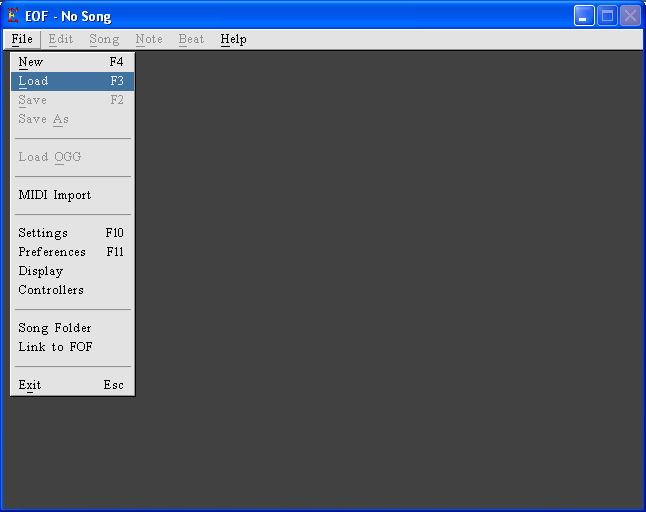
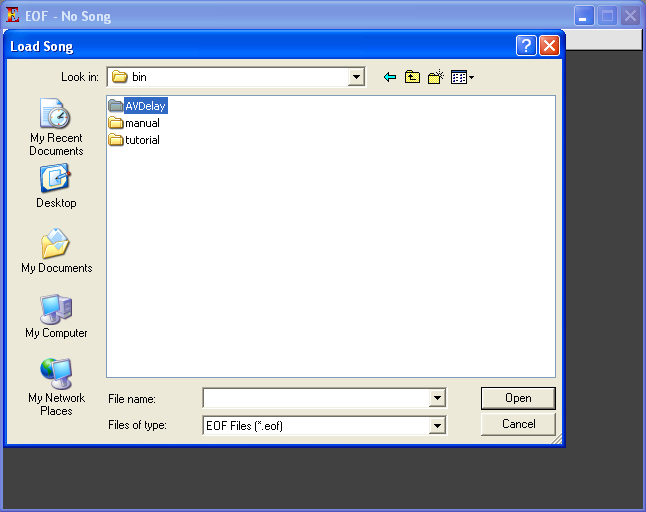
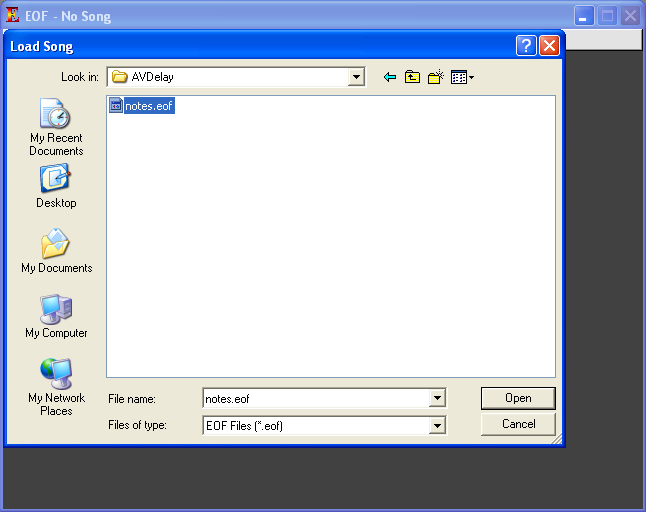
When the song is loaded, the screen will look like this:
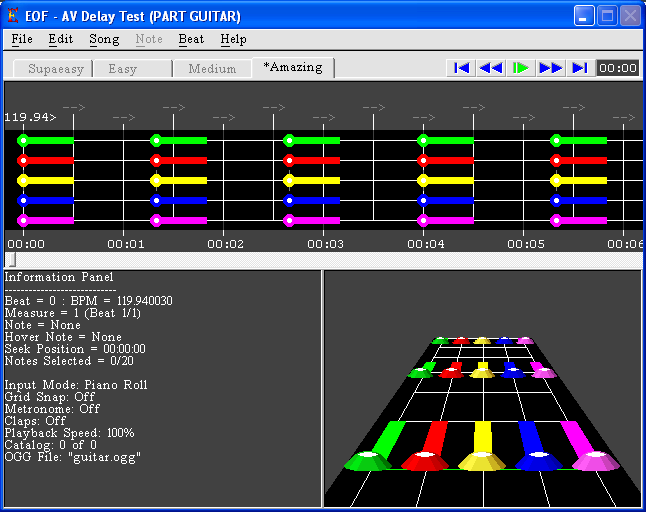
Press the space bar to play the song. A green line will move across the editor pane:
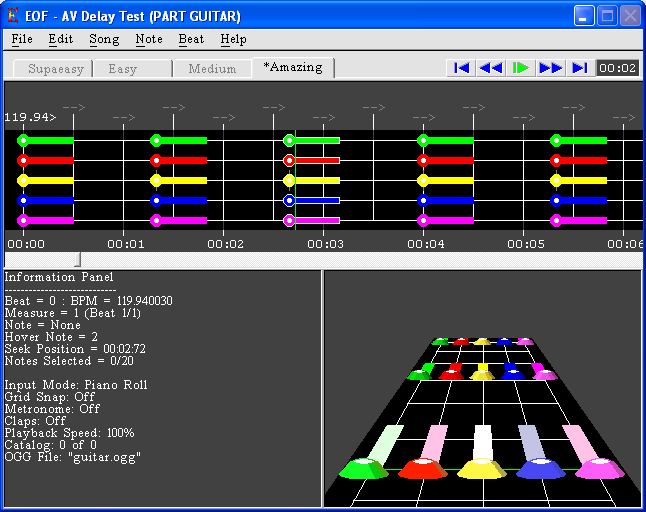
Adjust the AV delay while the song plays using the + or - keys until the green line passes over the notes in sync with the sound. You can also adjust this setting in the Settings dialog.
Setting Up Your Song Folder
The EOF Song Folder is where new projects are created. By default, projects are stored in the same folder as EOF. To change the folder:
- Select File > Song Folder from the menu.
- Use the folder browser to choose a new location:
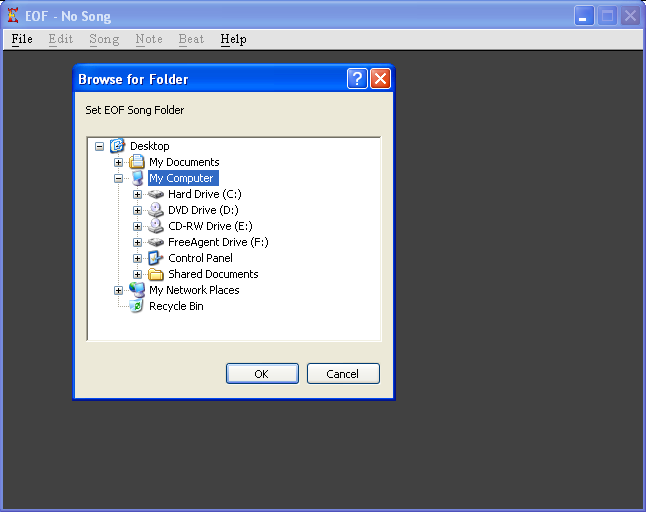
Each new project will be stored in a sub-folder of this directory.
Linking to FOF
You can link EOF to "Frets On Fire" to test your songs without copying files. To do this:
- Select File > Link To FOF.
- Browse to your
FretsOnFire.exefile:
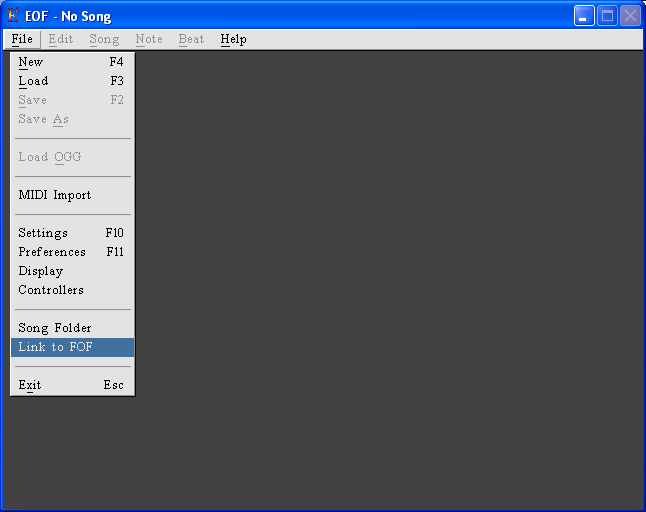
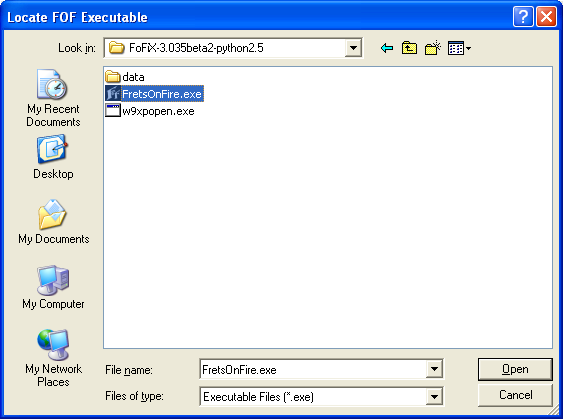
- Browse to your Frets On Fire song library base folder:
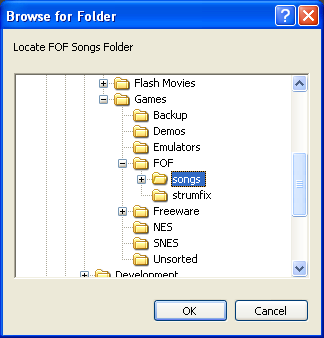
After setup, select Song > Test In FOF to test your project.
Linking to Phase Shift
To link EOF to Phase Shift:
- Select File > Link to Phase Shift.
- Browse to the Phase Shift executable file.
- Browse to the Phase Shift song folder.
This allows you to launch the currently open chart in Phase Shift's practice mode.
Other Settings
- MIDI Tone Delay: Adjust MIDI playback timing to account for external MIDI lag.
- CPU Saver: Reduces CPU usage by increasing idle time.
- Smooth Playback: Uses EOF’s timer for better synchronization of audio and video.
- Disable Windows UI: Uses EOF’s built-in file selectors.
- Disable VSync: Improves performance by skipping monitor refresh synchronization.
- Phase Cancellation: Reduces center-panned audio (e.g., vocals).
See File > Settings and File > Preferences for more details.
Preferences
General Preferences
- Inverted Notes: Flips note display in the fretboard editing area.
- Lefty Mode: Flips note display in the 3D Preview.
- Note Auto-Adjust: Keeps notes aligned with beat markers during adjustments.
- Enable Logging: Creates debug logs (
eof_log.txt). - Hide Drum Note Tails: Skips rendering drum note tails for performance.
- Disable Sound FX: Disables sound mixing during playback.
- Disable 3D/2D Rendering: Skips rendering to improve performance.
- Click to Change Dialog Focus: Requires a click to change input focus in dialogs.
For more details on preferences, refer to the manual section for Preferences.
Import/Export Preferences
- Save Separate Rocksmith 1 Files: Exports Rocksmith XML for creating custom charts.
- Save Separate Rocksmith 2 Files: Exports Rocksmith 2014 XML with additional features.
- Save Separate Bandfuse Files: Exports XML for Bandfuse charts.
- Save FoF/GH/Phase Shift Files: Exports files for Frets On Fire, Guitar Hero, and Phase Shift.
Refer to the Preferences Manual for additional options.
Was this article helpful?
Log in to rate this